

Your hiring, inside any AI tool
MCP (Model Context Protocol) connectors link Talentium to whichever AI tool you use – Claude, ChatGPT, Cursor, Copilot. Connect in about a minute, then ask about your jobs, candidates and notes in plain words.



'%20d='M11.04%2019.32Q12%2021.51%2012%2024q0-2.49.93-4.68.96-2.19%202.58-3.81t3.81-2.55Q21.51%2012%2024%2012q-2.49%200-4.68-.93a12.3%2012.3%200%200%201-3.81-2.58%2012.3%2012.3%200%200%201-2.58-3.81Q12%202.49%2012%200q0%202.49-.96%204.68-.93%202.19-2.55%203.81a12.3%2012.3%200%200%201-3.81%202.58Q2.49%2012%200%2012q2.49%200%204.68.96%202.19.93%203.81%202.55t2.55%203.81'/%3e%3c/svg%3e)
Your hiring data, one question away
Connects to whatever you're already using
Claude, ChatGPT, Cursor, Copilot – and whatever your team moves to next. Some tools connect by signing in, others with a key. Either way it takes about a minute, and your choice of AI tool is never limited by us.

Ask in plain words, in the tool you're in
You're in a tool drafting a hiring brief. Ask which of your candidates fit it, and the answer comes from your live Talentium workspace – not a spreadsheet you exported last week. No switching tabs, no pasting profiles into a chat window.
Nothing happens without you
Your AI tool reaches exactly what you can open in Talentium yourself, and nothing beyond it. It can draft a candidate email, but it can't send one – you see the recipient, subject and message first, and it goes out only when you confirm.

Connects to whatever you're already using
Claude, ChatGPT, Cursor, Copilot – and whatever your team moves to next. Some tools connect by signing in, others with a key. Either way it takes about a minute, and your choice of AI tool is never limited by us.
Ask in plain words, in the tool you're in
You're in a tool drafting a hiring brief. Ask which of your candidates fit it, and the answer comes from your live Talentium workspace – not a spreadsheet you exported last week. No switching tabs, no pasting profiles into a chat window.
Nothing happens without you
Your AI tool reaches exactly what you can open in Talentium yourself, and nothing beyond it. It can draft a candidate email, but it can't send one – you see the recipient, subject and message first, and it goes out only when you confirm.
How it works
Connect.
Open Integrations in Talentium, choose MCP connectors, and connect your AI tool – sign in where the tool supports it, paste a key where it doesn't. Takes about 60 seconds.
Choose what it can do.
Read-only lets your AI tool look things up. Read and write lets it draft, update and move things along. Start read-only if you're unsure – you can change it later.
Ask.
Talk to your AI tool the way you'd talk to a colleague. It works from your live Talentium workspace and shows you what it found.
What to ask once you're connected
Get your bearings
- “Show me my active jobs.”
- “Which candidates are strongest for the Backend Engineer role?”
- “Summarise this candidate's experience for the hiring manager.”
- “Show me recent activity on this candidate.”
Make a call
- “Compare these three candidates and explain the trade-offs.”
- “Which requirement is each of them missing?”
- “Pull together a shortlist update I can send to the hiring team.”
Move things forward
Read and write- “Create a draft job from this hiring brief.”
- “Add this note to the candidate.”
- “Move this candidate to Interviewing.”
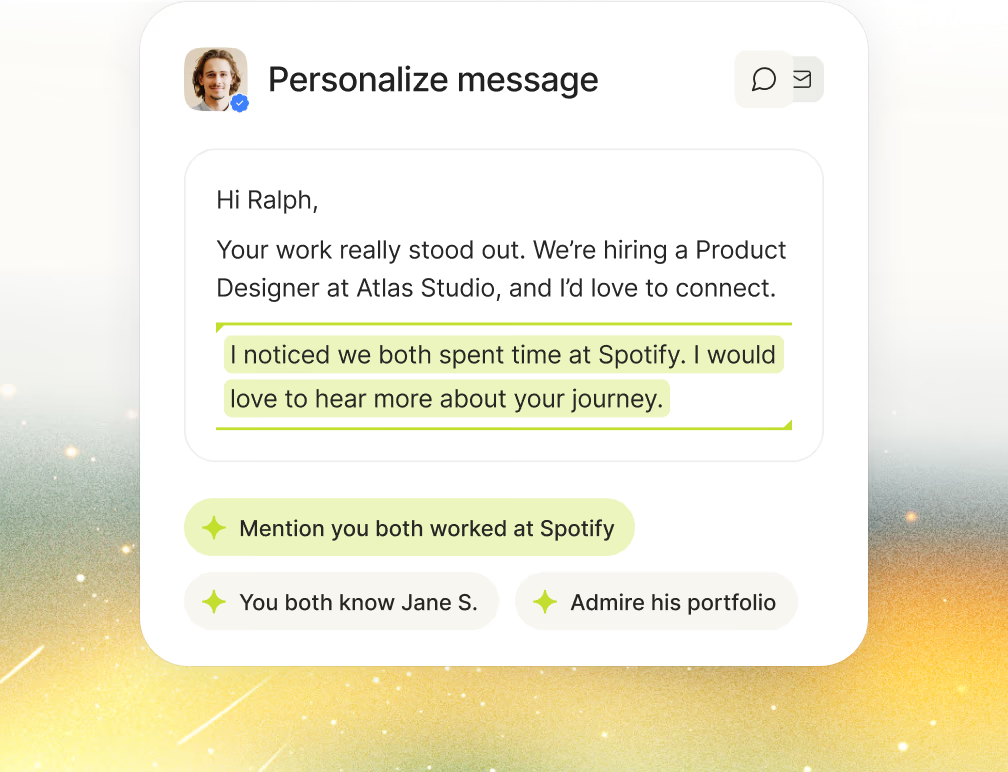
- “Draft a short outreach email – I'll review it before it goes.”


Frequently asked
MCP stands for Model Context Protocol. It's an open standard that lets an AI tool connect to the software you use and work with your real data. Talentium's MCP connectors are how you give Claude, ChatGPT, Cursor or another AI tool access to your hiring workspace. You don't need to understand the standard to use it – you connect it once, and your AI tool handles the rest.
Claude, Claude Code, ChatGPT, Cursor and Copilot – and any other AI tool that supports MCP. Where the tool lets you sign in, you sign in to Talentium and pick your workspace. Where it doesn't, you create a key and paste it in. Either way it takes about a minute.
If it supports MCP, it works. We name the tools people ask about most, but that isn't the limit.
MCP connectors are included from Starter. More about our plans
No. A connection is tied to your Talentium user and your workspace, so your AI tool can reach exactly what you can open yourself and nothing more. Contact details are protected separately – they're only shared when the connection has permission and the request needs them.
No. Talentium requires a confirmation step before anything sends. Your AI tool shows you the sender, recipient, subject and message, and the email goes out only after you confirm it. It's one candidate at a time – no bulk sends, no scheduled sends, no LinkedIn messages or InMail.
Read-only lets your AI tool look things up: find jobs and candidates, summarise profiles, compare a shortlist, review notes and history. Read and write lets it change things too: draft a job, add notes, move a candidate through the pipeline, prepare an email for you to approve. Start with read-only – you can add write access whenever you need it.
Go to Settings, open Integrations, choose MCP connectors, and remove the connection. It stops working immediately. Connections are per tool, so removing one doesn't affect the others.
Your data stays in EU-based data centres, encrypted in transit and at rest, under GDPR. Talentium never uses your data to train foundation AI models. Connecting an AI tool doesn't change any of that – though what happens inside that tool is governed by its own provider's terms. More on security
Yes, and you'll want to. MCP connectors are for asking and doing quick things without leaving what you're already working on. Full search, side-by-side comparison and the reasoning behind every match live in Talentium.